STAMPtk helps you add stamps, watermarks, headers or footers to your PDFs.
Use it to mark your PDF with custom data when it is served, or use it from your desktop command-line to mark a local PDF.
STAMPtk is a fast tool for creating simple PDFs that make good PDF stamps, watermarks, headers or footers.
The output from STAMPtk is then used as input to PDFtk Server’s stamp or watermark features. STAMPtk creates the stamp, then PDFtk Server applies the stamp to the PDF.
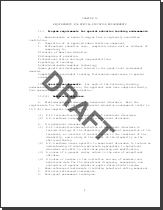
Here is an example of how to create a single-page "DRAFT" PDF to use as a watermark:
stamptk AAtext="DRAFT" AApos=center,center AAsize=100 AAcolor=#777777 AAangle=NE AAfont=sansBold output=stamp.pdf
Creates the PDF:

Now, use PDFtk Server to apply this as a watermark to in.pdf:
pdftk in.pdf background stamp.pdf output out.pdf
Yields:

On a server, you might prefer to pipe the output from STAMPtk directly into PDFtk:
stamptk AAtext="User Name" AApos=left,bottom | pdftk in.pdf stamp - output out.pdf
You can create a range of pages or multiple pieces of text using STAMPtk. Here is an example of how to create a ten-page PDF with headers, footers and custom, placed text:
stamptk Atext="Footer" Apos=left,bottom Arange=1-10Even
Btext="Header" Bpos=right,top Brange=1-10Odd
Ctext="Prepared for Joe Smith" Csize=20 Cpos=20,134 Crange=1 Ccolor=#8888AA
PDFtk Server lets you apply multi-page stamps and watermarks with its multistamp and multibackground operations.
You can use STAMPtk’s ability to precisely place text on PDF pages to effectively fill forms or perform mail merge functions. We have also used STAMPtk to create PDFs from raw PDF barcode streams, which we then applied to PDFs using PDFtk Server. We’ll be glad to show you how.
You can install PDFtk Server on your servers at no charge under its GPL license. STAMPtk licensing for a single server is $95. Discounts are available for multi-server licenses. Please contact us for more information.
Stamptk creates PDF pages from your page range options that are input on the command line, by one or more text files (via include=), or both. More than one page range can be described using the options, and these separate page ranges can have overlapping or even identical page numbers.
< page range handle > is a sequence of upper-case letters (A-Z[A-Z]...) that identify the page range for which the given < option key > and < option value > apply. Options that use the same handle are combined to make one page range. Multiple page ranges can be described by using a different handle for each page range. Page ranges can have overlapping page numbers (see the range option).
< option key > is one of: text | textUTF8 | pos | origin | size | color | font | angle | margin | range | stream | embed | media
< option value > is a value that suits the given option key, as follows:
This is the text you want displayed on the page. It is restricted to the CP-1252 character set. You can set only one of these per page range, but you can add multiple text strings to a page by using multiple page ranges. It is encoded in CP-1252, optionally using escaped octal (\000) or hexadecimal (\xHH) for non-ASCII characters. Backslashes must be escaped using a backslash (\).
This is the text you want displayed on the page. It is restricted to the CP-1252 character set. You can set only one of these per page range, but you can add multiple text strings to a page by using multiple page ranges. It is encoded in UTF-8.
This option sets the text’s position on the page. X or Y can either be an absolute coordinate on the page or one of the rela- tive arguments. Absolute coordinates are in points (72 points per inch), and the page origin is in the lower-left page corner. The relative arguments are relative to the page. X relative arguments are: center, left or right, and Y relative arguments are: center, top or bottom. Default: center,center
This sets the text’s origin to use when positioning the text on the page with pos. X can be: center, left or right, and Y can be: center, top or bottom. These describe the location of the text’s origin using the text’s borders. Default: center,center
This sets the text’s size in points (72 points/inch). Default: 14
This sets the text’s color. You have two formatting options: decimal or hex. When using decimal formatting, red, green and blue are decimal values between 0 and 255. When using hex formatting, RR, GG and BB are hexadecimal values between 00 and FF. Default: #000000 (black)
This is the font used to display the text. It can be one of:
If you add a page stream (described below) that uses one of PDF’s standard fonts, then set this font option to match for the relevant page(s). That will ensure that the required font resources are packed into the PDF page. If no text or stream is given for any page range, then no font resources are added to the PDF. Default: sans
This sets the text’s angle. It uses compass points to divide the circle into 45-degree pieces. For example the N angle gives you right-reading text and the E angle rotates the text 90 degrees clockwise so it reads from top to bottom. Text is rotated on its origin, described above. Default: N
This allows you to add your own PDF page description code to the pages in the range. The given keywords delimit the PDF code that will be added to the PDF page verbatim. There is a newline after the first keyword and another newline before the last keyword. This can be used in combination with the text, textUTF8 and related options. When using only the stream option, the only other options to consider are the range, embed, media and font options — the other options relate only to adding text to the pages. You can apply multiple streams to a single page by using multiple page ranges.
This takes an arbitrary string and invisibly embeds it into each page’s PDF dictionary using the dictionary key stamptkData. This is useful if you have data you want to pass to a PDF parser downstream. Parentheses and backslashes must be escaped with a backslash. Only one can be set per page. If more than one range sets this option, only the final setting will be used — values are not appended the way page text and page streams are. Maximum length: 64k bytes.
This sets the page dimensions. For standard page name use one of: letter, tabloid, ledger, legal, statement, executive, folio, A0, A1, A2, A3, A4, A5, B4 or B5, and you can append Landscape to change its orientation. Or, you can give the page width and page height in points (there are 72 points per inch). Default: letter
is used in conjunction with relative pos values (top, bottom, left, right) to tell stamptk how much space to keep between your text origin and the edge of the page. It is an integer value and its units are points (there are 72 points per inch). Default: 24
where the page numbers give one or more pages to be used for this page range. Page numbers are 1-based, so the first page is numbered 1, not zero. On page ranges, you can append Even or Odd to effect just those pages. Default: 1
Our mission is to make PDF easier to use.
PDF Labs is operated by Sid Steward, author of PDF Hacks (O’Reilly) and the popular PDF Toolkit.
Please contact Sid Steward by email. Include PDF Labs in the subject to ensure prompt delivery:
"If you like pdftk, then you’ll appreciate the other 25 programs and scripts I created for my book, PDF Hacks." –Sid
Copyright © 2004–2013 Sid Steward